Follow this customer guide to turn your website into Android and iOS apps, prepare signing, create production builds, publish to the stores, and keep users updated.
Prepare the information, accounts, and assets you need before opening the app editor.
01
Sign in to PocketMySite and open the app builder dashboard.
Confirm your website URL opens correctly on mobile browsers and uses HTTPS.
Choose the app name users will see in the dashboard and app stores.
Prepare developer accounts for Google Play Console and Apple Developer Program if you plan to publish in stores.
Prepare image assets: a 1024x1024 PNG app icon, optional splash assets, drawer assets, offline image, and error image.
Important: Store approval is handled by Google and Apple. PocketMySite prepares the app files and publishing flow, but final review decisions stay with each store.
New project
2. Create Your App
Start a website-to-app project and learn the dashboard layout.
02
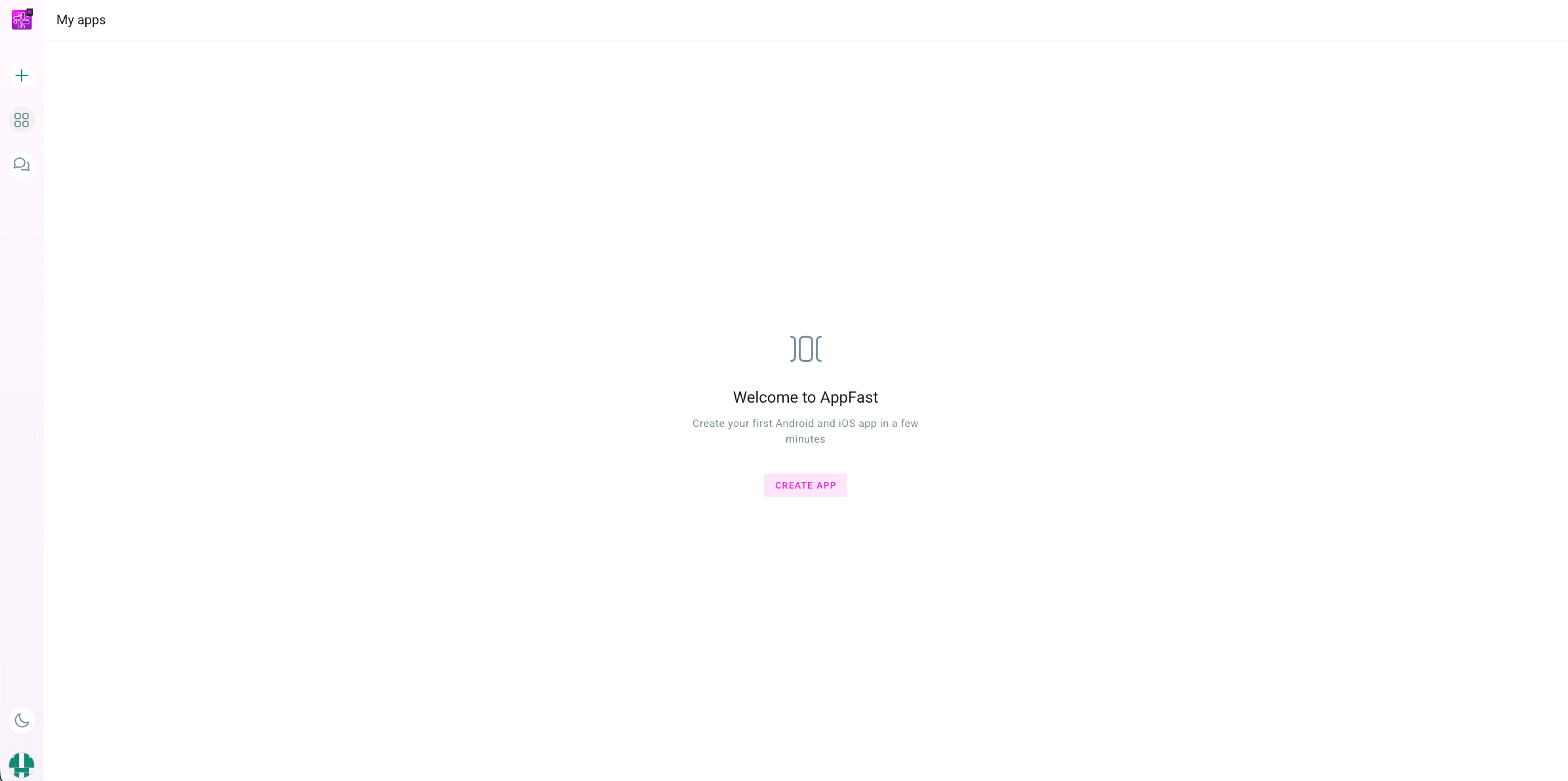
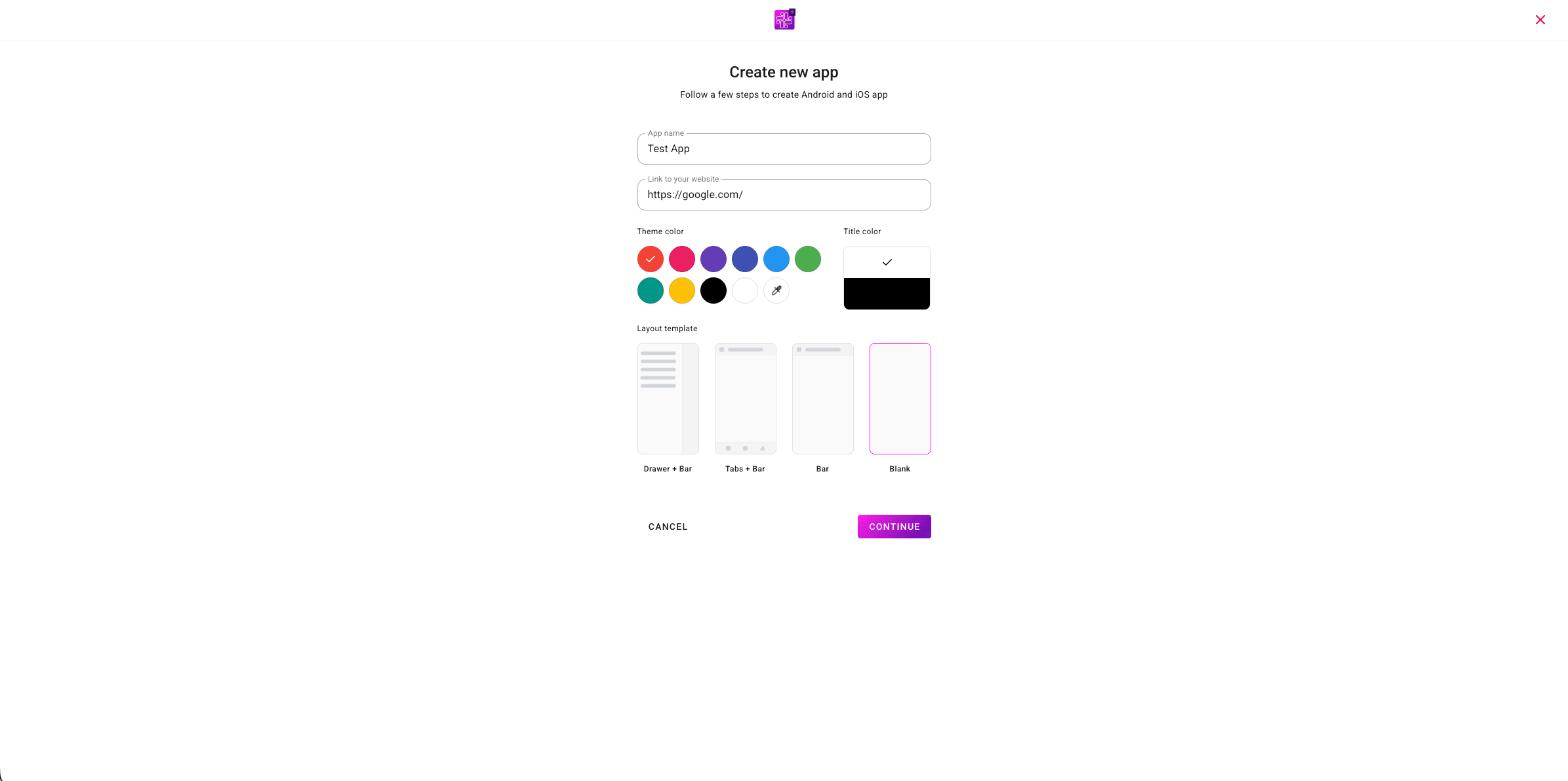
Use the plus button or My Apps area in the PocketMySite dashboard to create a new app.
Enter the app name and the full website link.
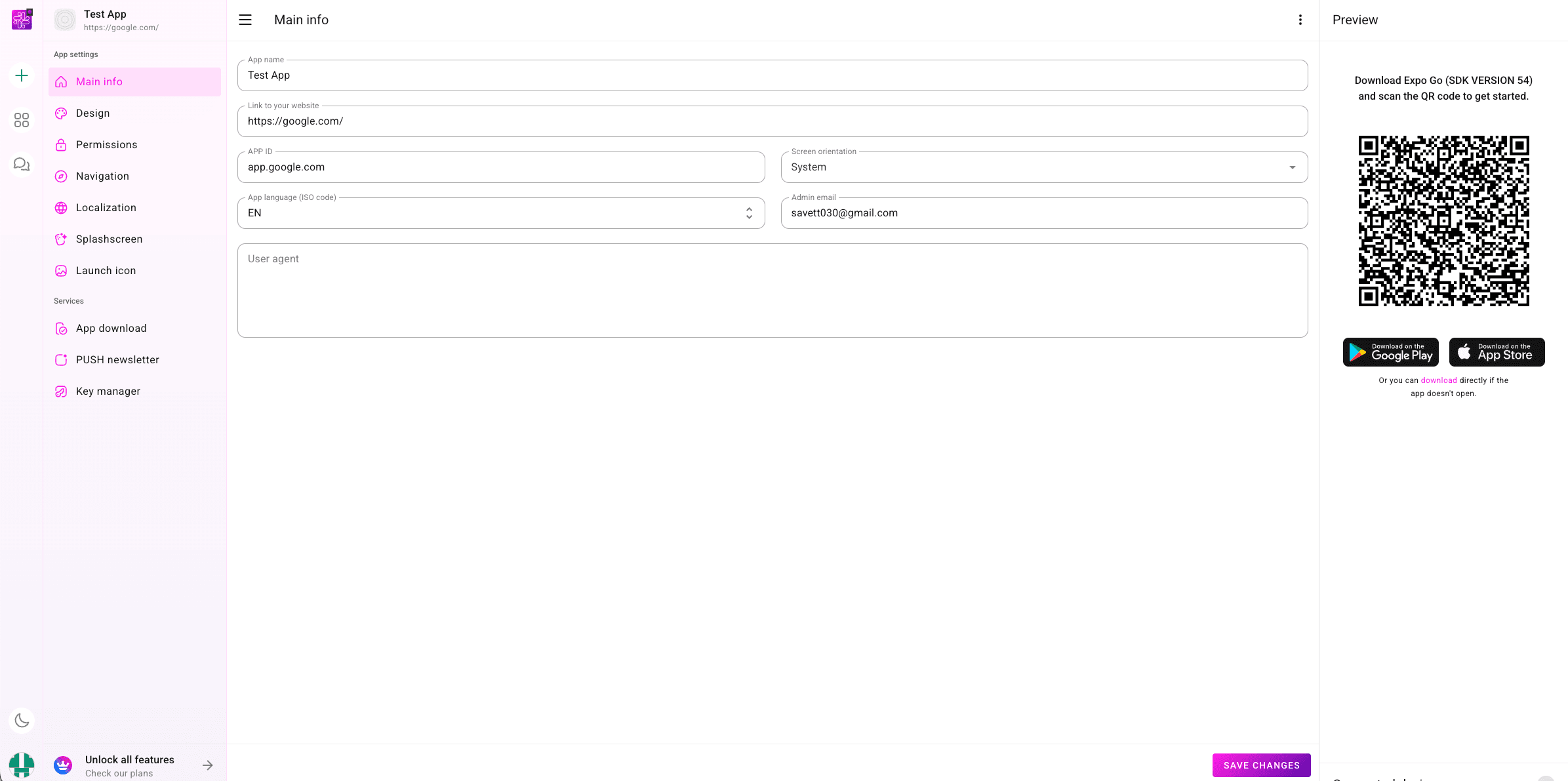
After the editor opens, confirm the app name and website link appear in the project header on the left.
Complete the App settings screens in order: Main info, Design, Permissions, Navigation, Localization, Splashscreen, and Launch icon.
Use the Services screens for App download, PUSH newsletter, and Key manager.
Click Save Changes after editing any settings screen.
Important: Your website content remains connected to the app. Most website text, product, blog, and page updates appear without rebuilding the store app.
Expo Go SDK 54
3. Live App Preview
Connect your phone with Expo Go to scan the QR code and view live app changes while editing.
Open your app in the PocketMySite editor and keep the Preview panel visible on the right side.
Download Expo Go (SDK VERSION 54) on your Android or iOS device from Google Play, the App Store, or the direct Expo Go download page.
Open Expo Go on your phone and allow camera access if the app asks for it.
Tap Scan QR Code in Expo Go, then scan the QR code shown in the PocketMySite Preview panel.
Wait for the preview to load on your phone, then test layout, navigation, colors, splash behavior, and connected devices.
When you make edits in PocketMySite, click Save Changes, then return to Expo Go and refresh or reopen the preview if the change does not appear immediately.
Use a production build for final device checks because preview mode cannot test every native store capability.
Important: Live preview is best for visual checks, navigation checks, and live editing. Camera, GPS, push notifications, signing, and store behavior should be verified from a real production build.
Identity
4. Main Info
Set the app identity that will be used for Android and iOS builds.
04
Open Main info from App settings.
Fill App name with the public name of your app.
Fill Link to your website with the complete website URL.
Set APP ID in reverse-domain format, for example app.yourbrand.com or com.yourbrand.app.
Choose Screen orientation. The dashboard supports System and other orientation choices.
Set App language (ISO code), such as EN.
Enter the Admin email used for app contact or support.
Optionally enter a User agent if your website needs to detect the app webview.
Click Save Changes.
Important: Use the same app identifier in PocketMySite, Google Play, and App Store Connect. Package names and bundle IDs are long-term store identifiers.
Template, drawer, styles
5. Design
Control the app layout, colors, drawer, and hidden website elements.
05
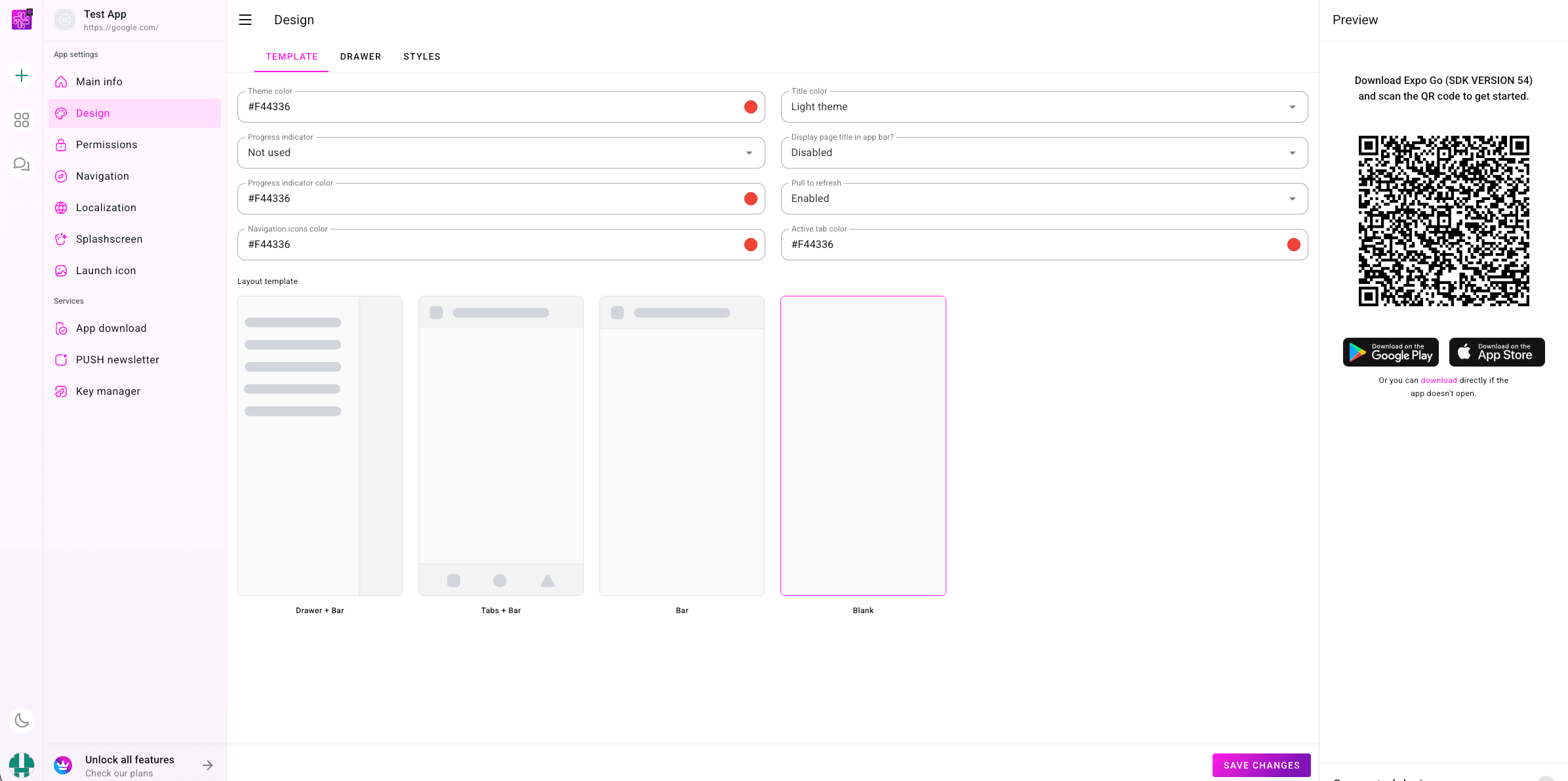
Open Design, then use the Template tab for Theme color, Title color, Progress indicator, Display page title in app bar?, Progress indicator color, Pull to refresh, Navigation icons color, and Active tab color.
Choose a Layout template: Drawer + Bar, Tabs + Bar, Bar, or Blank.
Open the Drawer tab to set Drawer mode, Color, Text theme, Display logo, Title, and Subtitle.
Upload drawer assets only if needed. The dashboard expects the Background image to be under 500kb and 1920x1920px, and the Logo image to be under 500kb and 1200x1200px.
Open the Styles tab to hide website elements inside the app by CSS class name. For example, add navbar if you do not want your website navigation to appear in the app.
Use Add Div on the Styles tab to add hidden classes, then click Save Changes.
Important: Design changes can be previewed with the QR code. Store builds should be recreated after app-level visual changes that affect native assets or launch behavior.
Native access
6. Permissions
Enable only the device permissions your website actually needs.
06
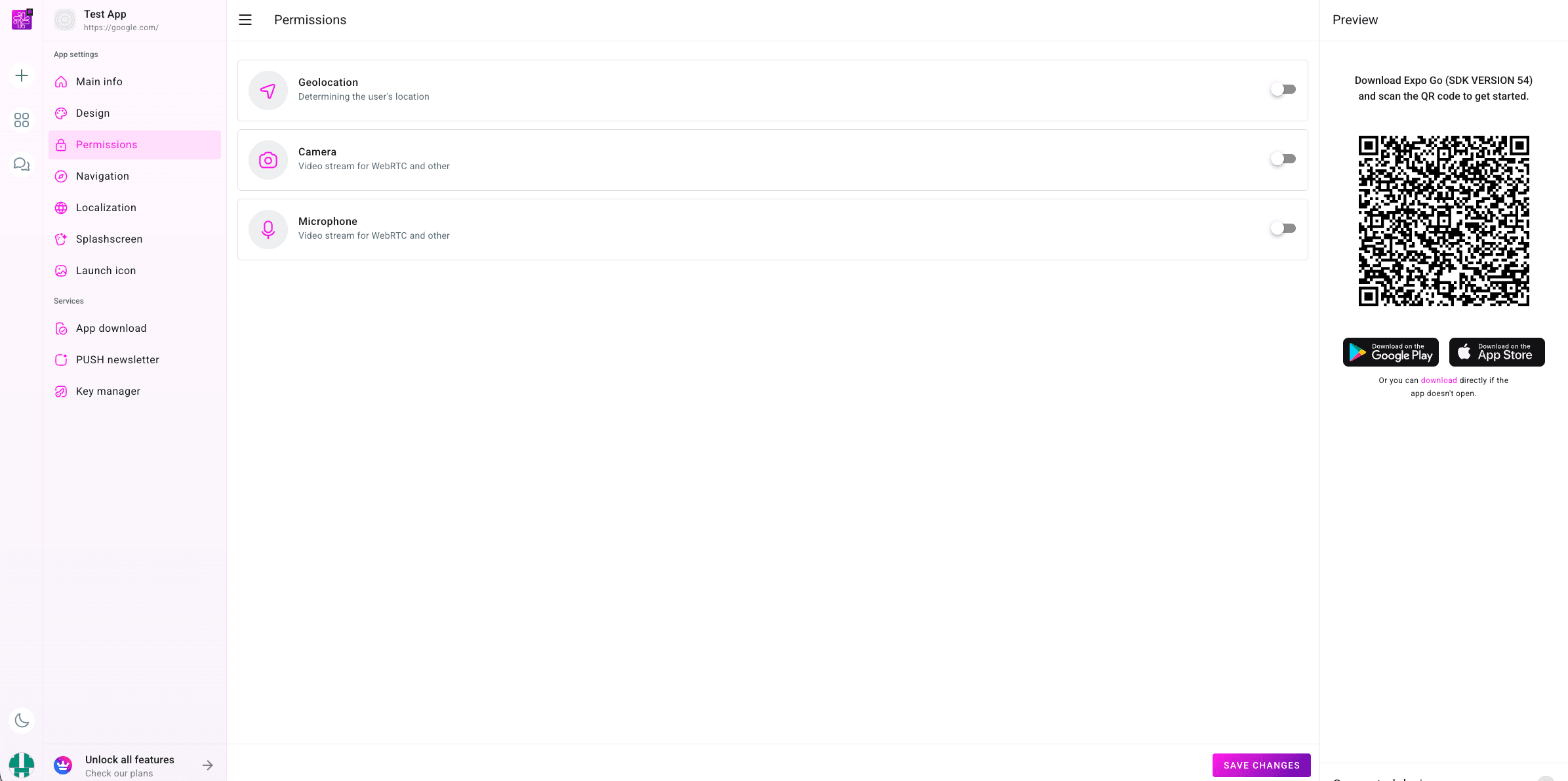
Open Permissions from App settings.
Toggle Geolocation if the app needs to determine the user's location.
Toggle Camera if your website uses camera capture, video stream, WebRTC, or similar features.
Toggle Microphone if your website uses audio capture, video calls, WebRTC, or similar features.
Click Save Changes and test permission prompts on a real device build.
Important: Only enable permissions that your app clearly uses. Google and Apple may review permission usage during store submission.
Menus and buttons
7. Navigation
Add the links and actions users can open from app navigation.
07
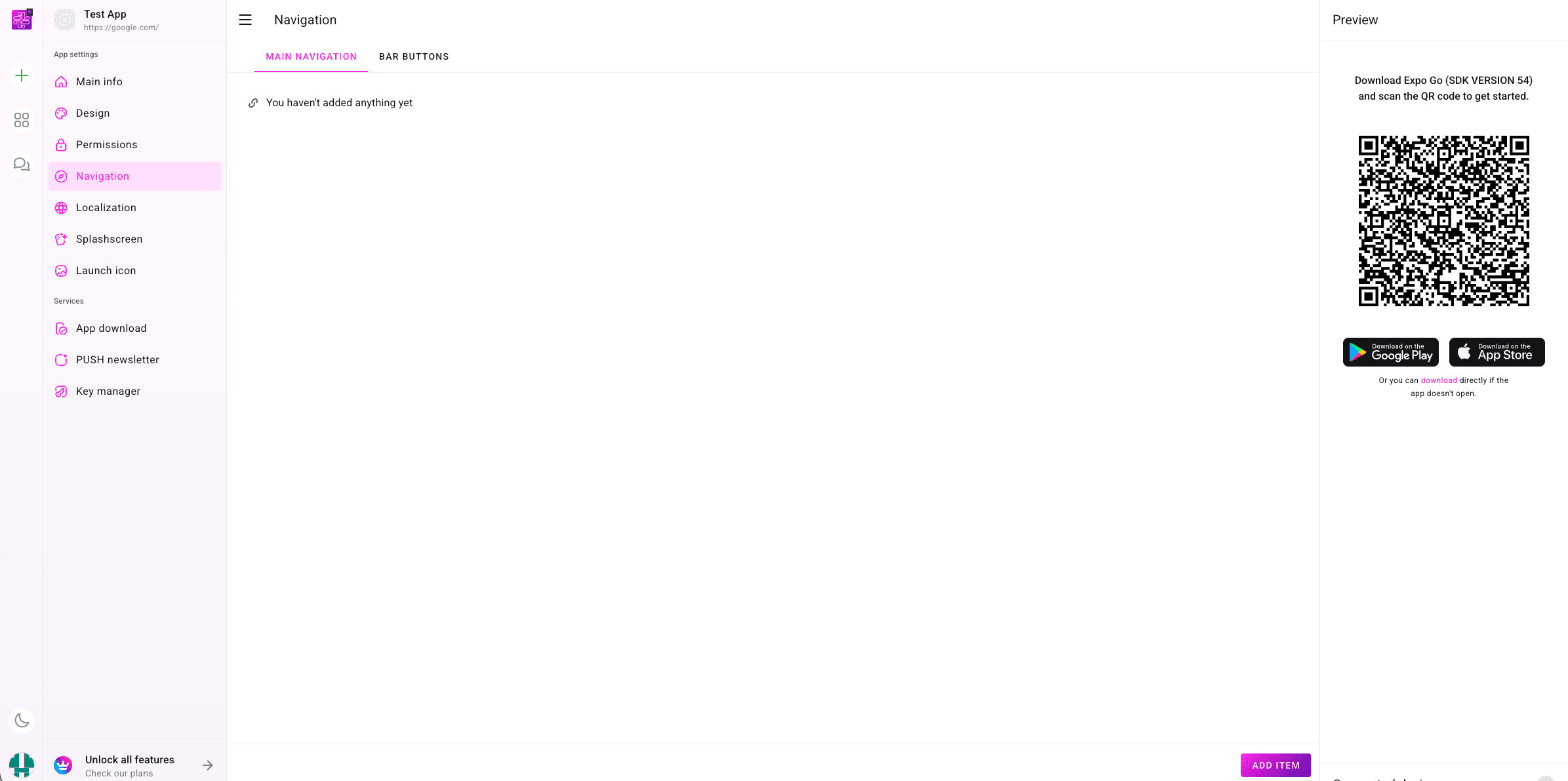
Open Navigation from App settings.
Use the Main navigation tab for drawer or main menu items.
Use the Bar buttons tab for bar actions when your selected layout supports them.
If the list is empty, the dashboard shows You haven't added anything yet.
Click Add Item to create a navigation entry, then choose the label, action, icon, and target that match the user flow.
Click Save Changes after adding or editing navigation items.
Important: Keep navigation focused. Your website already has internal navigation, so app-level buttons should cover the most important mobile actions.
Text and error states
8. Localization
Customize built-in app text and fallback images shown outside your website content.
08
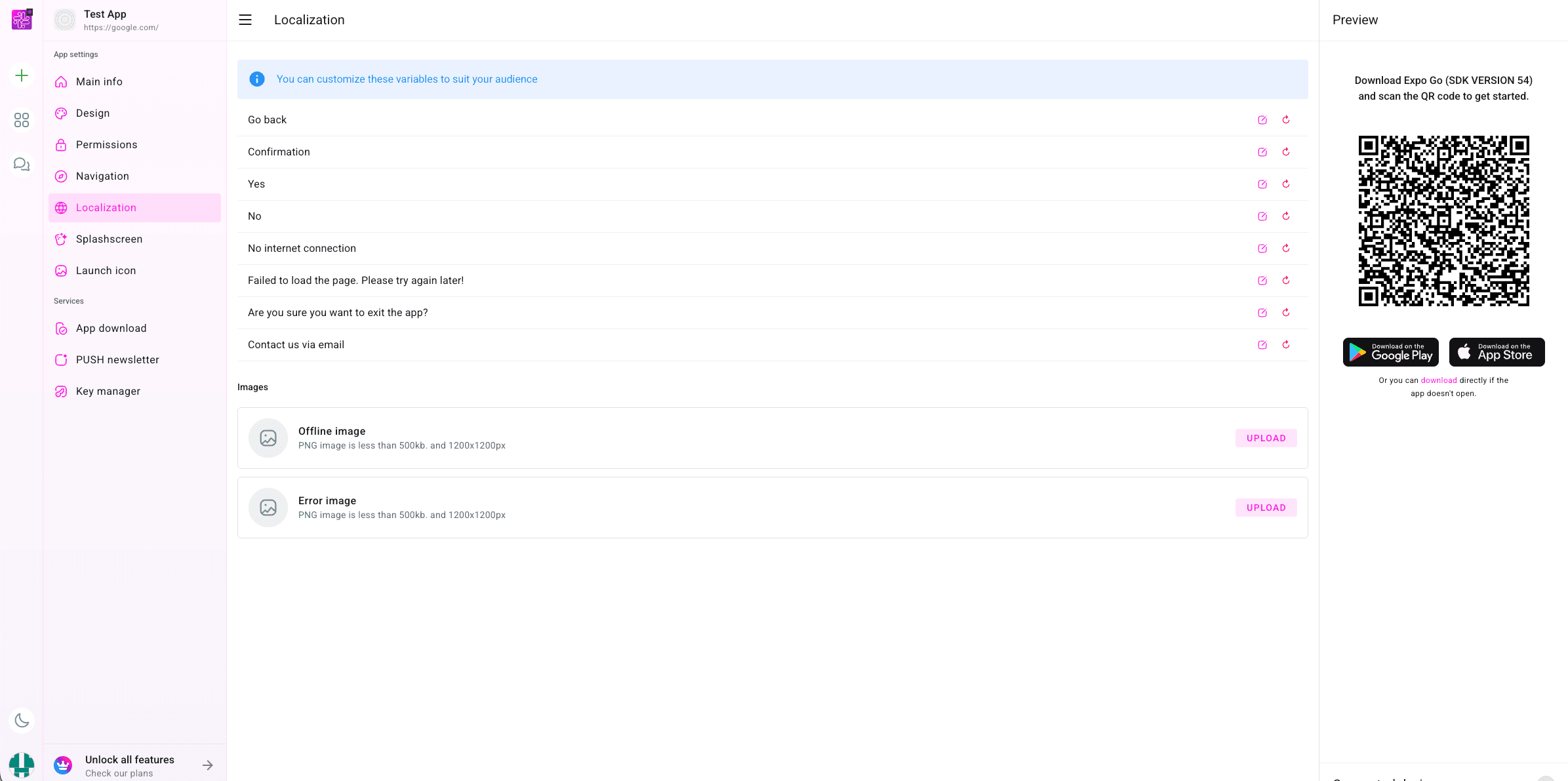
Open Localization from App settings.
Review the built-in text variables: Go back, Confirmation, Yes, No, No internet connection, Failed to load the page. Please try again later!, Are you sure you want to exit the app?, and Contact us via email.
Use the edit icon to change a text value for your audience.
Use the reset icon if you need to restore the default value.
Upload an Offline image and Error image if you want branded fallback screens. Each PNG should be under 500kb and 1200x1200px.
Click Save Changes when finished.
Important: Localization text appears in app-level messages, not inside your website CMS content.
Launch screen
9. Splashscreen
Configure the screen users see while the app starts.
09
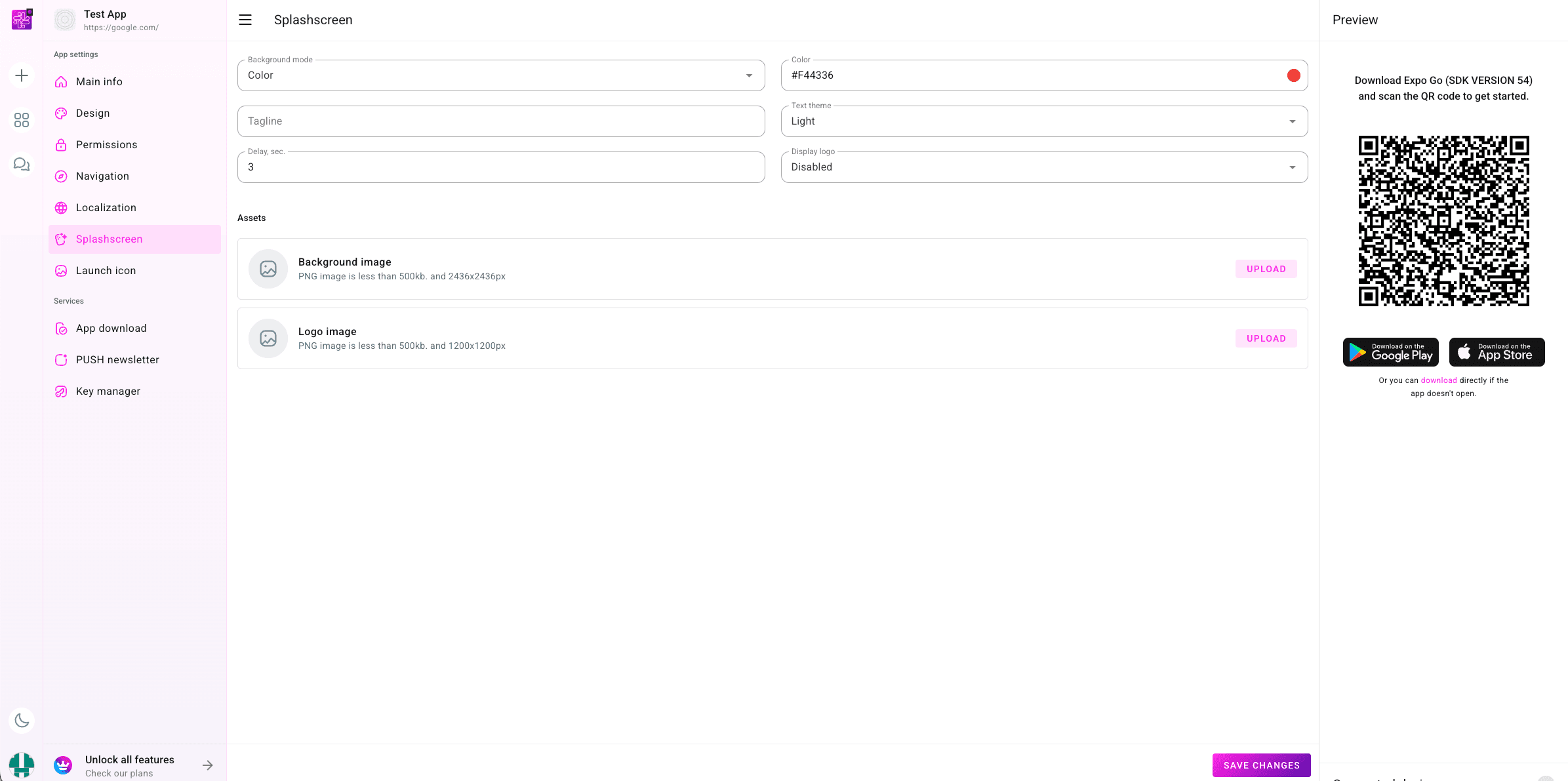
Open Splashscreen from App settings.
Choose Background mode, then set Color if you use a solid background.
Add an optional Tagline.
Choose Text theme, such as Light.
Set Delay, sec. The screenshot shows 3 seconds as the current value.
Choose whether to Display logo.
Upload splash assets when needed. The Background image should be under 500kb and 2436x2436px, and the Logo image should be under 500kb and 1200x1200px.
Click Save Changes.
Important: Changing splash assets is an app-level change. Create a new build before submitting the updated app to a store.
App icon
10. Launch Icon
Upload the icon used on the device home screen and in generated platform assets.
10
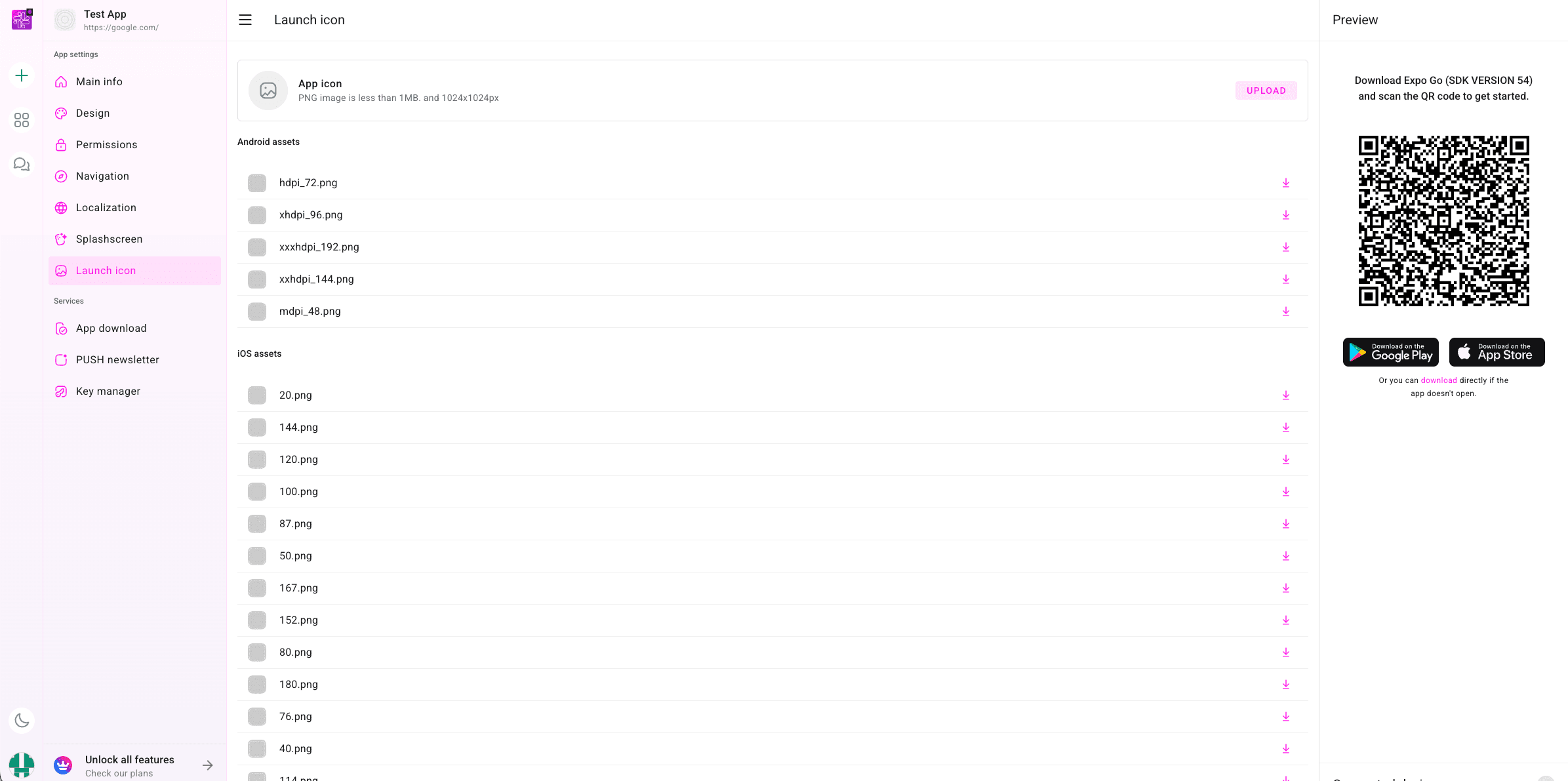
Open Launch icon from App settings.
Upload the App icon as a PNG under 1MB and exactly 1024x1024px.
After upload, review generated Android assets such as hdpi_72.png, xhdpi_96.png, xxhdpi_144.png, xxxhdpi_192.png, and mdpi_48.png.
Review generated iOS assets such as 20.png, 40.png, 50.png, 76.png, 80.png, 87.png, 100.png, 120.png, 144.png, 152.png, 167.png, and 180.png.
Use the download icons if you need individual generated icon files.
Click Save Changes.
Important: The store icon is one of the most visible parts of the app. Use a clear, square source image without tiny unreadable text.
Security
11. Key Manager
Add the keys PocketMySite needs to sign production app files.
11
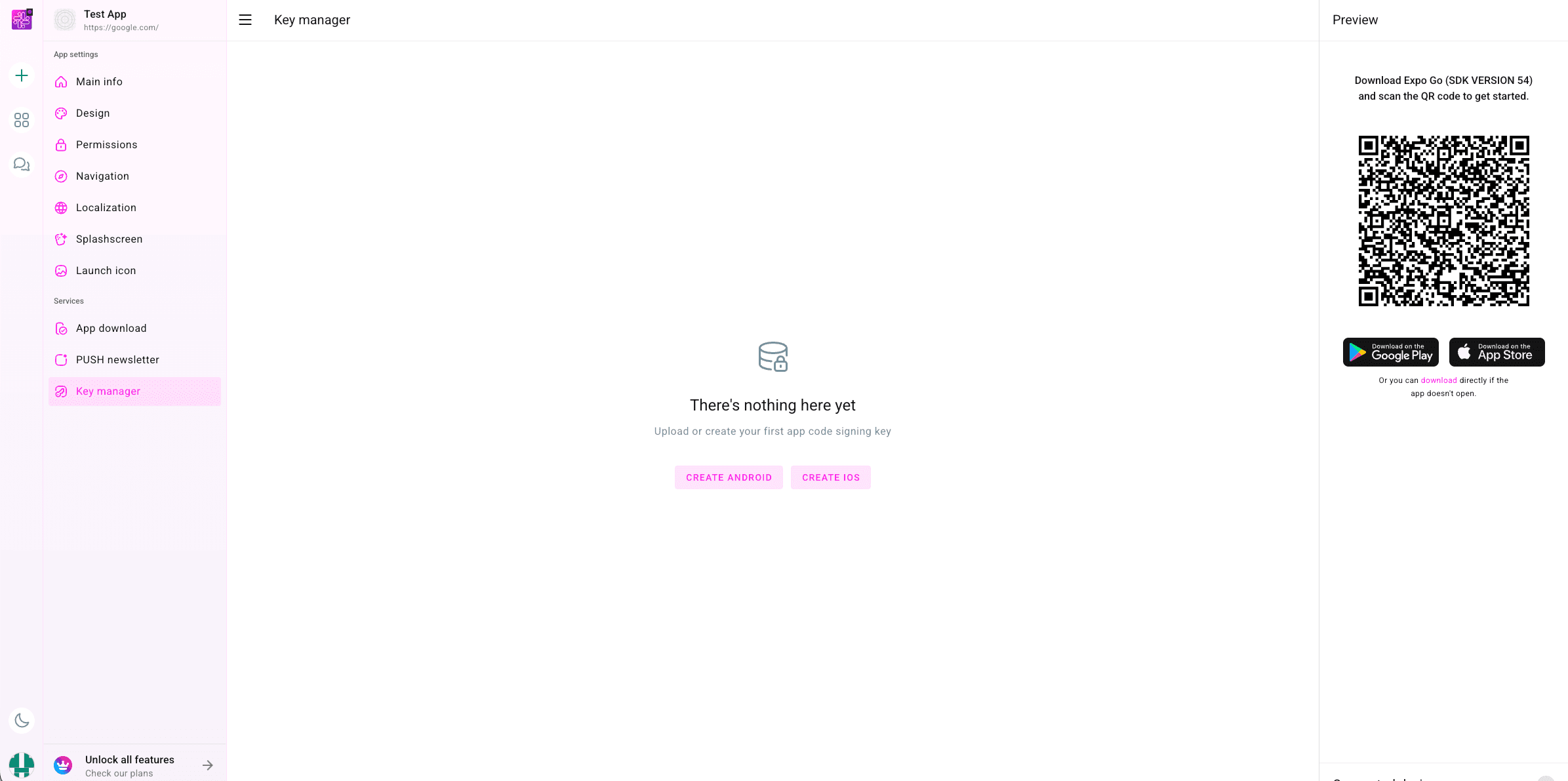
Open Key manager from Services.
If no keys exist yet, the dashboard shows There's nothing here yet and asks you to upload or create your first app code signing key.
Click Create Android to create or add an Android signing key.
For Android custom signing, upload your .jks keystore with alias, keystore password, and key password if requested.
Click Create iOS to add an iOS signing key.
For iOS, create an App Store Connect API key, then upload the .p8 file with Issuer ID and Key ID.
Name each key clearly so you can select it during build creation.
Keep signing credentials secure and do not revoke active store keys unless you understand the release impact.
Important: Key creation, app builds, push newsletter, automatic signing, and TestFlight publishing may require an active plan.
AAB, APK, IPA
12. App Download
Generate installable app files from your configured project.
12
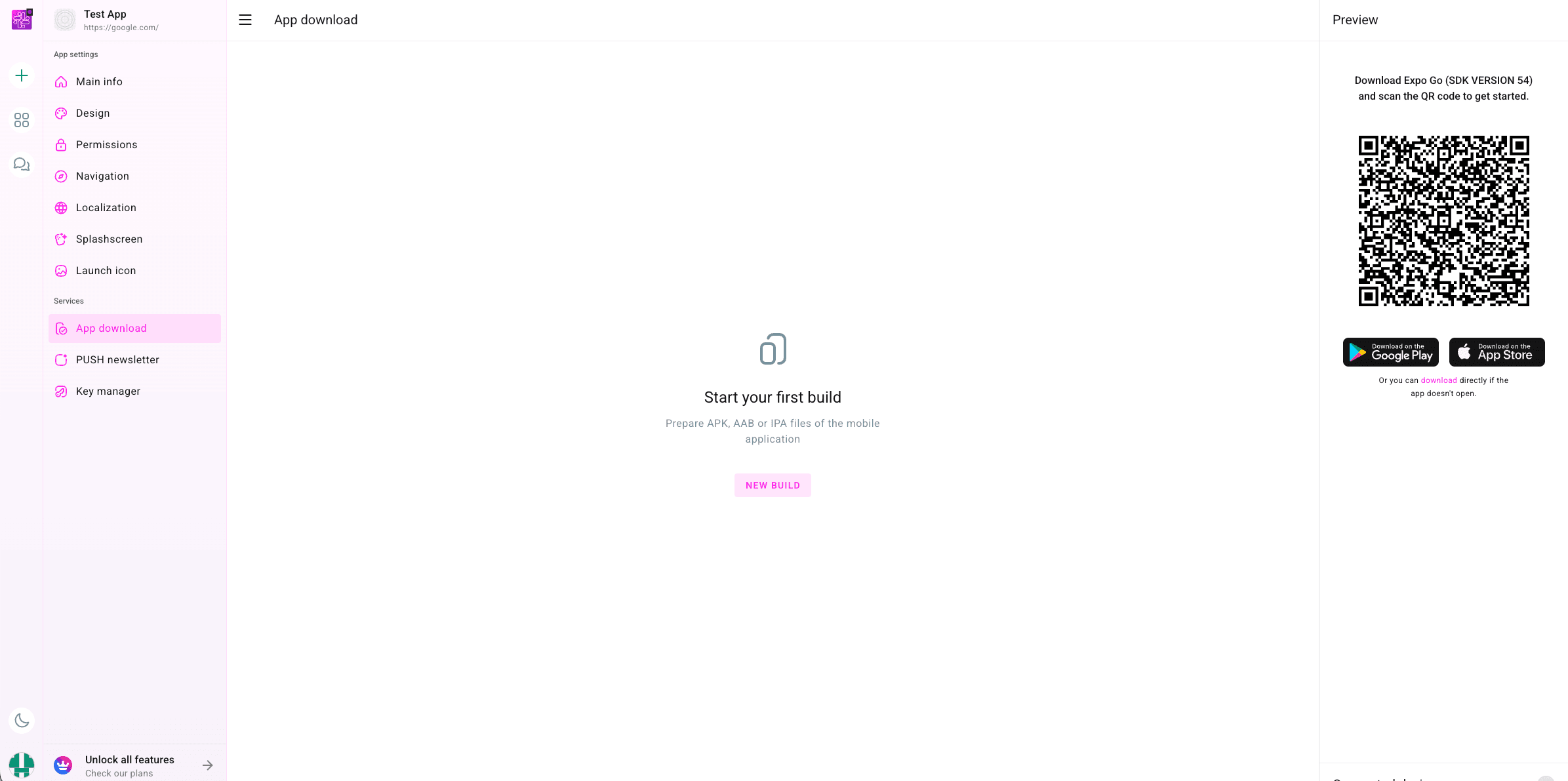
Open App download from Services.
If this is your first build, the dashboard shows Start your first build and Prepare APK, AAB or IPA files of the mobile application.
Click New Build.
If the Select plan screen opens, choose Monthly or Annual and select the plan that fits your build count. The dashboard plans unlock app builds, unlimited preview/SDK, Android push notifications, Android and iOS support, automatic app signing, TestFlight publishing, and priority support.
Choose Android or iOS and enter the version.
Select the signing key for that platform.
For Android, choose AAB for Google Play or APK for local testing and direct distribution.
For iOS, choose whether to publish to App Store Connect while building.
Wait for the build to move from pending or building to completed, then download the artifact when available.
Important: PocketMySite allows one active build at a time for an app. If a build fails, review the message, fix the issue, and start a new build.
Google Play
13. Publish Android
Upload your Android App Bundle to Google Play Console.
13
Create a new app in Play Console and complete the required dashboard setup.
Use the same package name you entered as the APP ID in PocketMySite.
Open App download in PocketMySite and download the completed AAB file.
Create an internal, closed, open, or production release in Play Console.
Upload the AAB, add release notes, complete any app content or policy forms, and review errors or warnings.
Roll out the release when Play Console allows publishing.
Important: Google states that Android App Bundles are used to generate optimized APKs for users. New personal developer accounts may need closed testing with at least 12 opted-in testers for 14 continuous days before production access.
App Store Connect
14. Publish iOS
Send iOS builds to App Store Connect and TestFlight without using Xcode.
14
In App Store Connect, create a new app record before uploading your first build.
Select iOS, enter the app name, primary language, bundle ID, SKU, and access settings.
Create or confirm your App Store Connect API key and add it in PocketMySite Key manager.
In PocketMySite, open App download, create an iOS build, and enable the publish option when available.
After the upload finishes, open App Store Connect and check the build under TestFlight.
Add test information, invite internal or external testers, collect feedback, then submit the app for App Review when ready.
Important: Apple says TestFlight builds can be tested for up to 90 days. External tester distribution may require beta app review.
After launch
15. Update Your App
Know when a website update is enough and when a new store build is needed.
15
Update regular website content in your website CMS or store platform as usual.
Create a new PocketMySite build when you change Main info identifiers, permissions, splashscreen assets, launch icon, offline image, error image, signing, or store version.
Use Save Changes on the edited screen before starting a new build.
For Android, upload the new AAB to the same Play Console app.
For iOS, upload a new build to the same App Store Connect app record.
Keep release notes short, useful, and matched to the actual changes.
Important: Do not change package name or bundle ID for an existing store app. A different identifier is treated like a different app.
Newsletter
16. PUSH Newsletter
Send push messages to users after the Android service is active.
16
Create at least one paid production build for the app.
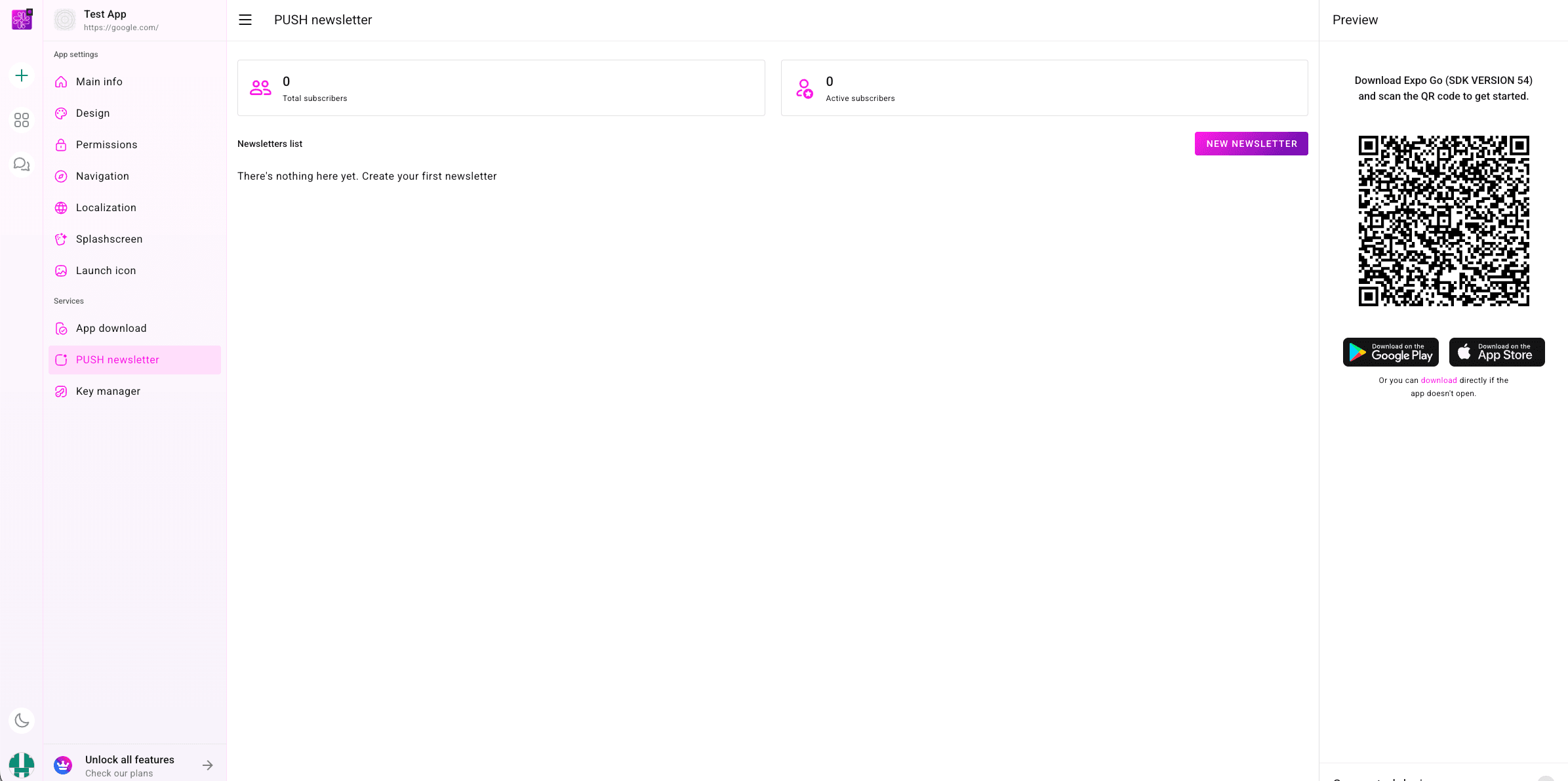
Open PUSH newsletter from Services.
Review Total subscribers and Active subscribers.
If the list is empty, the dashboard shows There's nothing here yet. Create your first newsletter.
Click New Newsletter.
Create a newsletter with title, message, and optional image when the form opens.
Send the notification and review successful sends, clicks, and errors in the history list.
Important: Push newsletters are for Android users in this PocketMySite flow. The service may show as pending until it is activated after the first build.
Official Store References
Store policies and console screens can change. Use these official pages when preparing final submissions.